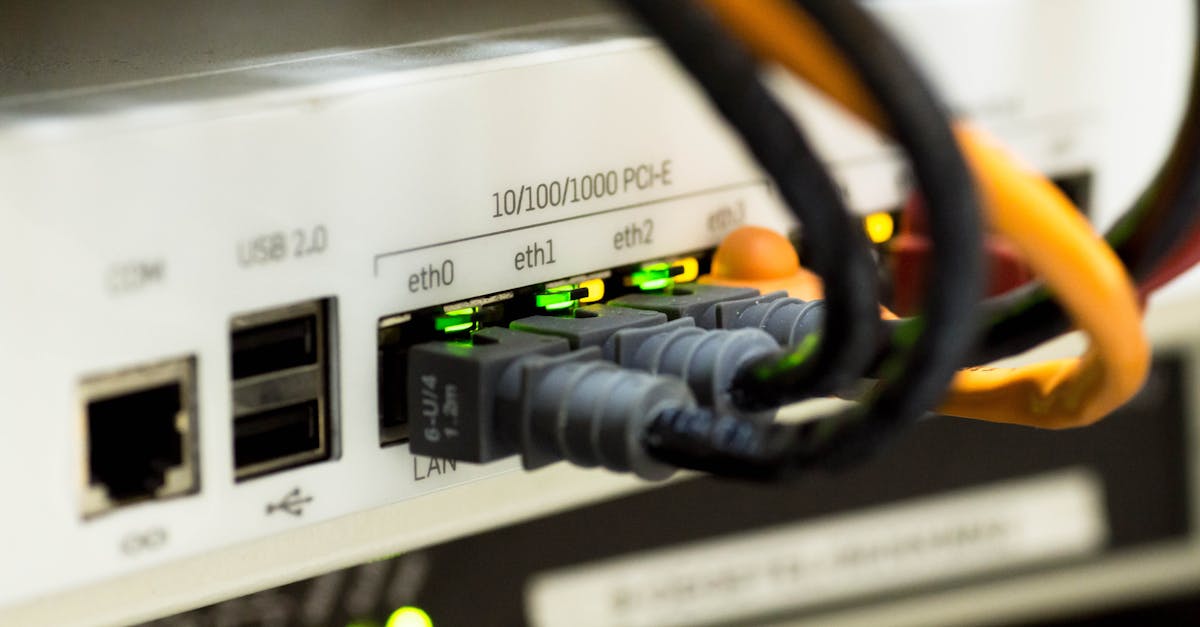
Secure Your Home Network Without Changing Your ISP
For too long, I believed that robust home network security was either a privilege of expensive, enterprise-grade setups or something entirely dependent on the internet service provider (ISP) I chose. I’d fall for the marketing hype, thinking a different ISP would magically solve all my privacy and security woes, only to find myself wrestling with the same vulnerabilities, just with a different bill. The truth, as I’ve come to understand through years of navigating digital threats, is far simpler and much more empowering: you have significant control over your home network’s security, regardless of your ISP.
Many of us settle for the default settings our ISP provides, assuming they’re ‘good enough.’ We trust the equipment they send us, often unknowingly leaving wide-open doors for potential intruders, data breaches, or even just general digital malaise. I used to be one of those people. My network was a patchwork of default passwords, unsegmented devices, and a general ‘hope for the best’ attitude. That changed after a minor scare involving a suspicious login attempt on one of my smart home devices. It wasn’t a catastrophic breach, but it was enough to make me realize my casual approach was a ticking time bomb. I needed to act, and I needed to do it without the hassle and cost of switching providers.
What I discovered is that true security comes from a layered approach, focusing on the points you can control. It’s about taking ownership of your digital perimeter, understanding where the common weaknesses lie, and systematically shoring them up. You don’t need to be a cybersecurity expert, nor do you need to spend a fortune. What you need is a practical, step-by-step guide to fortify your home network using the tools and knowledge already at your disposal. This isn’t about fear-mongering; it’s about empowerment, giving you the confidence that your digital life is protected.
Key Takeaways
- Never rely on default router passwords; change them immediately to strong, unique combinations for critical protection.
- Implement a separate guest Wi-Fi network to isolate smart devices and limit potential breach points from visitors or compromised gadgets.
- Regularly update your router’s firmware to patch vulnerabilities and ensure optimal performance, as this is a primary defense against external threats.
- Utilize a custom DNS resolver like Cloudflare or OpenDNS to enhance privacy and filter malicious content at the network level.
Abandon Default Passwords Immediately
The single most critical step you can take to secure your home network is also the simplest: change your router’s default login credentials immediately. In my experience, this is the mistake I see most often, and it’s the easiest entry point for attackers. Many routers come with generic usernames like ‘admin’ and passwords like ‘password,’ or a simple string printed on a sticker. These are widely known and easily exploited by automated bots scanning for vulnerable networks.
When I first started taking my home network seriously, I was mortified to realize my own router still had its default password. It felt like leaving my front door unlocked with a giant ‘come on in’ sign. What changed everything for me was sitting down, finding my router’s IP address (usually 192.168.1.1 or 192.168.0.1, found in your ISP’s documentation or a quick search for your router model), logging in, and creating a truly robust password. I aimed for a minimum of 16 characters, including a mix of uppercase and lowercase letters, numbers, and symbols. I also changed the default Wi-Fi network name (SSID) from something generic like ‘ATT-XXXX’ to a personalized, non-identifiable name. Avoid using your address or last name in your SSID. This simple act immediately elevated my security posture by an order of magnitude.
Beyond the router’s administration login, ensure your Wi-Fi password itself is equally strong. WPA2 or WPA3 encryption should be enabled (WPA3 is preferable if your router and devices support it). Never use WEP, as it’s easily cracked. The tradeoff for a complex password is the minor inconvenience of typing it once on each new device, but the peace of mind it offers is invaluable. This foundational step is non-negotiable for anyone serious about protecting their digital home.
Segment Your Network with a Guest Wi-Fi
Another crucial layer of defense, often overlooked, is network segmentation through a guest Wi-Fi network. Many modern routers, even those supplied by ISPs, offer the option to create a secondary, isolated Wi-Fi network. This isn’t just for visitors; it’s a powerful security tool for your own smart devices.
In my household, we have a growing collection of smart devices: smart bulbs, smart plugs, a smart thermostat, and various IoT gadgets. The mistake I see most often is connecting all these devices to the main Wi-Fi network, alongside laptops, phones, and tablets that handle sensitive data like banking and personal communications. What changed everything for me was creating a dedicated guest network for all smart home devices. This isolates them from my primary network, forming a crucial barrier.
Consider this scenario: a cheap smart bulb from an unknown manufacturer might have a vulnerability. If it’s on your main network, a hacker could exploit that flaw to gain access to your laptop or phone. However, if it’s on an isolated guest network, the worst they can do is potentially control your smart bulb. They can’t jump to your primary devices because the networks are segmented. I configured my guest network with its own strong, unique password, ensuring it cannot ‘see’ or interact with any devices on my main network. This strategy significantly reduces the attack surface and minimizes the potential damage from a compromised IoT device, transforming a potential weakness into a controlled environment.
Prioritize Router Firmware Updates
Neglecting router firmware updates is akin to leaving critical security patches uninstalled on your computer. Regularly updating your router’s firmware is a vital defense mechanism against evolving cyber threats. This isn’t just about adding new features; it’s primarily about patching security vulnerabilities that attackers constantly seek to exploit.
I learned this lesson the hard way. For years, I ignored the firmware update notifications, thinking it was an unnecessary hassle that might break something. Then, a friend in IT explained how many major security exploits target unpatched router firmware, turning them into entry points for botnets or data interception. What changed everything for me was setting a recurring calendar reminder every three months to check for and install updates. It takes about 10-15 minutes, usually involving a quick download and a router restart.
The process typically involves logging into your router’s administration panel (using those strong, non-default credentials we set up earlier), navigating to a ‘Firmware Update,’ ‘Maintenance,’ or ‘Administration’ section, and then either clicking an ‘Update’ button or manually downloading the file from your router manufacturer’s website and uploading it. Some newer ISP-provided routers may even handle updates automatically, but it’s always worth checking to confirm. This proactive measure ensures your router has the latest defenses, making it much harder for malicious actors to compromise your network at its most fundamental level.
Leverage Custom DNS for Enhanced Privacy and Filtering
Beyond the physical hardware, another powerful way to secure and enhance your network experience without changing your ISP is by utilizing a custom Domain Name System (DNS) resolver. Your ISP typically routes all your internet traffic through their own DNS servers, which can be slow, sometimes track your browsing habits, and often lack robust security features.
What changed everything for me was switching to a reputable third-party DNS provider like Cloudflare (1.1.1.1) or OpenDNS (208.67.222.222). These services offer several advantages. Firstly, they are often significantly faster, improving your overall browsing speed. Secondly, they prioritize privacy, typically not logging your DNS queries in the same way an ISP might. Thirdly, many offer enhanced security features, such as blocking known malicious websites (malware, phishing) at the DNS level. OpenDNS, for example, allows for content filtering, which is incredibly useful for households with children.
The process to change your DNS is usually done within your router’s administration panel. Look for ‘WAN settings,’ ‘Internet settings,’ or ‘DNS settings.’ You’ll replace the automatic or ISP-provided DNS server addresses with the custom ones. I specifically configured my router to use Cloudflare’s DNS, and I immediately noticed a snappier browsing experience and a definite reduction in suspicious ads and pop-ups. This is a subtle yet incredibly effective way to add a layer of defense and control over your internet traffic, filtering out threats before they even reach your devices.
Implement MAC Address Filtering as a Barrier
While not foolproof, MAC address filtering provides an additional, albeit minor, layer of defense against unauthorized devices connecting to your Wi-Fi. Every device that connects to a network has a unique Media Access Control (MAC) address. Your router can be configured to only allow devices with specific MAC addresses to connect to your network.
I’ll be honest, I initially dismissed MAC filtering as overly complicated and easily circumvented. However, in my pursuit of a layered security approach, I revisited it. What I realized is that while a determined attacker can spoof a MAC address, it still acts as a deterrent for casual snoopers or accidental connections from neighbors. It adds a hurdle that wasn’t there before. For someone like me, who values knowing exactly what’s on my network, this was a valuable step. What changed everything for me was seeing it as a minor inconvenience for legitimate devices that provides another small defense against illegitimate ones.
To implement this, you’ll need to log into your router’s settings and find the ‘MAC Filtering,’ ‘Access Control,’ or ‘Wireless Security’ section. You’ll then typically see an option to create a ‘whitelist’ of approved MAC addresses. You’ll need to find the MAC address for each of your devices (usually in the network settings of your phone, laptop, smart device, etc.) and add them to this list. Yes, it’s a bit tedious, especially with many devices, but once set up, it requires approval for any new device, giving you direct control over who and what joins your network. This is not your primary line of defense, but it contributes to a more robust, multi-layered security posture.
Disable Universal Plug and Play (UPnP)
Disabling Universal Plug and Play (UPnP) on your router is a crucial security step that many people overlook. While UPnP is designed for convenience, allowing devices on your network to automatically open ports and communicate with each other or the internet, this very convenience creates significant security vulnerabilities.
For years, I benefited from UPnP without understanding its implications. My gaming consoles and smart devices connected effortlessly. Then, I read numerous cybersecurity reports highlighting UPnP as a common exploit vector. What changed everything for me was realizing that if a malicious piece of software got onto one of my devices, UPnP could grant it the ability to open a port on my router without my explicit permission, effectively creating a backdoor to my network. It’s like having an automatic door opener that any device, good or bad, can trigger without a key.
To disable UPnP, log into your router’s administration panel and look for a section titled ‘UPnP,’ ‘Network Services,’ or ‘Advanced Settings.’ Simply toggle the feature off and save your changes. The minor tradeoff might be that certain online games or applications might require you to manually forward specific ports, but this is a far safer process as it requires your conscious configuration. In my experience, the security gain from disabling UPnP far outweighs the minimal convenience it provides, offering a more tightly controlled and secure network environment.
Frequently Asked Questions
How often should I change my Wi-Fi password?
While changing your Wi-Fi password every few months can add a layer of security, the most critical step is ensuring it’s a strong, complex, and unique password from the start. If you suspect any unauthorized access or have shared your password with many people, then changing it immediately is essential. Otherwise, a very strong, unique password is often sufficient for long periods, provided other security measures like firmware updates and guest networks are in place.
Can my ISP see what I’m doing online even with these security measures?
Your ISP can still see certain aspects of your online activity, primarily the websites you visit (through DNS queries, unless you use a custom, encrypted DNS like Cloudflare’s 1.1.1.1 or a VPN) and the amount of data you’re using. These network security measures focus on protecting your local network from unauthorized access and malicious content. To truly encrypt your traffic from your ISP, you would need to use a Virtual Private Network (VPN).
Will turning off UPnP break any of my devices or services?
Potentially, but usually only for specific applications. Devices like gaming consoles often rely on UPnP to automatically configure port forwarding for online multiplayer. If you turn off UPnP, you might experience issues with these applications. The safer alternative is to manually configure port forwarding for the specific services that require it, giving you explicit control over which ports are open and why.
Is MAC address filtering effective against sophisticated hackers?
MAC address filtering is a relatively weak security measure against sophisticated attackers who can easily spoof (imitate) a legitimate MAC address. Its primary benefit is to deter casual intruders or accidental connections from unknown devices. It acts as an additional hurdle, not a primary fortress. For robust security, focus more on strong passwords, WPA3 encryption, firmware updates, and network segmentation.
Should I hide my Wi-Fi network (disable SSID broadcast)?
Hiding your Wi-Fi network’s SSID (name) by disabling its broadcast offers a very minimal security benefit. While it makes your network less visible to casual scanners, it does not prevent a determined attacker from discovering it. In fact, some older devices may have trouble connecting to hidden networks, causing more inconvenience than security. It’s generally more effective to focus on strong WPA3 encryption and robust passwords rather than relying on a hidden SSID.
Written by Sarah Chen
Home organization and mindful routines
A former community organizer, Sarah brings a knack for streamlining complex processes and fostering intentional living.