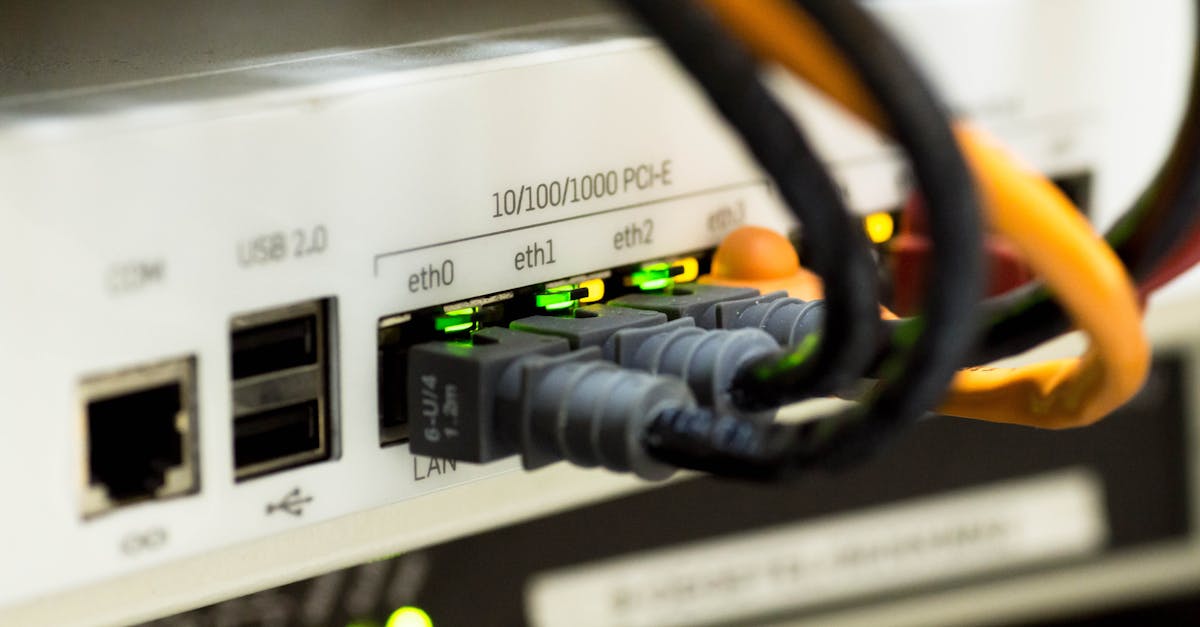
Secure Your Home Network Without Changing Your ISP
You’ve invested in smart home devices, stream high-definition content, and maybe even work from home. Your internet service provider (ISP) promises security, but a generic router and default settings are rarely enough. I’ve seen countless homeowners, myself included, assume their ISP’s setup is bulletproof. The reality is, most ISP-provided routers come with glaring vulnerabilities and default settings that leave your digital life exposed. For years, I just accepted the black box the cable company gave me, convinced I was secure because it ‘worked.’ It wasn’t until a minor incident – a smart camera feed briefly becoming publicly accessible due to an easily guessed default password – that I realized relying solely on my ISP was a colossal oversight.
What changed everything for me was adopting a proactive, multi-layered approach to home network security, leveraging the equipment I already had or could acquire affordably, without the hassle or expense of switching providers. My approach focuses on practical, immediate changes that make a significant difference in your digital defense. We’re not talking about enterprise-level IT overhauls, but rather tangible steps any homeowner can implement to drastically improve their network’s resilience against common threats.
Key Takeaways
- Change default router credentials immediately to prevent unauthorized access.
- Implement a strong, unique Wi-Fi password to secure your network’s entry point.
- Segment your home network to isolate smart devices and guest access, limiting potential breach impact.
- Regularly update router firmware to patch vulnerabilities and improve security features.
Always Change Default Router Credentials
The biggest mistake I see most often is leaving the default username and password on your router. Think of it as leaving your front door unlocked with a spare key under the mat for anyone to find. Many router manufacturers use standard login credentials (e.g., admin/admin, user/password), which are widely known and easily found online. A quick search on Shodan, a search engine for internet-connected devices, can reveal countless routers still using these factory settings, making them prime targets for anyone with malicious intent.
In my experience, changing these credentials is the single most impactful step you can take to secure your network. When I first got my ISP-provided router, I logged in once to set up Wi-Fi, then promptly forgot about the admin panel. Years later, when I decided to take my security seriously, I was shocked to find it was still set to ‘admin/password’. It was a wake-up call.
Here’s how to do it: First, find your router’s IP address (usually printed on the back or bottom of the device, or found through your computer’s network settings – often something like 192.168.1.1). Type this into your web browser. You’ll be prompted for a username and password. Use the default ones to log in the first time. Navigate to the ‘Administration,’ ‘Settings,’ or ‘Security’ section. Look for ‘Router Password,’ ‘Admin Password,’ or similar options. Choose a strong, unique password that combines uppercase and lowercase letters, numbers, and symbols, at least 12-16 characters long. Do not reuse this password anywhere else. Write it down and store it securely, perhaps in a password manager. This simple change immediately closes a massive vulnerability that attackers often exploit.
Fortify Your Wi-Fi Network with Strong Passwords
After securing your router’s administration panel, your next priority is your Wi-Fi network itself. Many people still rely on the pre-printed password sticker on their router, or worse, use a weak, easily guessable phrase. This is your second line of defense; if an attacker gets past this, they have direct access to every device on your main network.
The problem with many default Wi-Fi passwords is their predictability. While often long, they sometimes follow a pattern unique to the manufacturer or are derived from information publicly available about your router, making them vulnerable to targeted attacks. I once visited a friend who complained about slow internet. Turns out, a neighbor was leeching off his Wi-Fi, easily having guessed the password which was simply a slight variation of the router’s model number.
What changed everything for me was creating a completely random, long, and complex Wi-Fi password. This is distinct from your router’s administration password. For your Wi-Fi, you want a WPA2 or WPA3 password that’s at least 20 characters long, incorporating a mix of uppercase and lowercase letters, numbers, and symbols. WPA3 is the newest and most secure, so if your router supports it, enable it. If not, WPA2 is still very robust.
Here’s the actionable step: Access your router’s settings again (using your new admin credentials). Find the ‘Wireless Settings’ or ‘Wi-Fi’ section. Change the ‘Network Name (SSID)’ if you wish, but the most crucial part is updating the ‘Wireless Password/Passphrase.’ Select WPA2/WPA3-PSK [AES] as the encryption type if prompted. Input your new, strong password. Remember, every device connected to your Wi-Fi will need to be reconnected with this new password. It’s a minor inconvenience for significantly enhanced security, making it exponentially harder for unauthorized individuals to join your network and access your devices or data.
Implement Network Segmentation for Enhanced Isolation
Many homeowners overlook network segmentation, seeing it as too technical. In reality, it’s a simple yet incredibly effective way to contain potential breaches and protect your most sensitive data. Think of it as having separate, locked rooms in your house for different types of guests or items. If one room is compromised, the others remain secure. Most ISP-provided routers, especially modern ones, offer a ‘Guest Network’ feature, which is your simplest tool for segmentation.
The mistake I see most often is people connecting all their smart devices (cameras, thermostats, smart plugs) and their guests to their main Wi-Fi network. If a vulnerable smart device is hacked, it becomes a backdoor to everything else on your network – your computers, phones, and sensitive files. I learned this the hard way when a cheap smart plug, connected to my main network, was found to have a severe unpatched vulnerability. The thought of what could have happened if someone had exploited it sent shivers down my spine.
What changed everything for me was creating a dedicated Guest Network for all my smart home devices and visitors. This isolates these potentially vulnerable devices from my primary network where my computers and personal data reside. Here’s how to set it up: Log into your router’s administration panel. Look for ‘Guest Network’ or ‘Multiple SSIDs.’ Enable it and give it a unique name (e.g., ‘MyHome_IoT’ or ‘MyHome_Guest’). Assign it a strong, separate password. Crucially, most routers with a guest network feature will automatically isolate traffic on this network from your main network, preventing devices on one from seeing devices on the other. Connect all your smart home devices (smart TVs, voice assistants, security cameras, smart bulbs) to this guest network. Only connect your trusted devices – laptops, smartphones, primary tablets – to your main, secure Wi-Fi network. This simple act of segmentation drastically reduces the attack surface on your critical devices, ensuring that even if an IoT device is compromised, the damage is contained.
Regularly Update Your Router’s Firmware
Router firmware is essentially the operating system for your router. Like any software, it can have bugs and security vulnerabilities that manufacturers discover and patch over time. Many people, myself included, simply ‘set and forget’ their router, never thinking about updating its firmware. This is a critical oversight, as unpatched vulnerabilities can leave your entire network open to exploitation, regardless of how strong your passwords are.
The mistake I see most often is users assuming their router updates automatically, or not realizing updates are even necessary. When I first started diving into home network security, I found my router was running firmware that was nearly two years old. That’s two years of potential vulnerabilities that had been discovered and patched, but my device was still exposed.
What changed everything for me was setting a recurring calendar reminder to check for firmware updates every few months. This proactive habit has become non-negotiable. Here’s how you can implement this: Log into your router’s administration panel. Look for a section labeled ‘Firmware Update,’ ‘System Tools,’ or ‘Maintenance.’ There will usually be an option to ‘Check for New Firmware’ or ‘Upgrade Firmware.’ Some modern routers may offer automatic updates, which you should enable if available. If not, you’ll typically download the latest firmware file from your router manufacturer’s support website (using your computer, not a smart device connected to the network you’re about to update) and then upload it through the router’s interface. Always follow your specific router manufacturer’s instructions carefully to avoid bricking your device. Firmware updates often include critical security patches, performance improvements, and sometimes new features. By keeping your router’s firmware up-to-date, you ensure your network is protected against the latest known threats, providing a stronger, more reliable foundation for your digital life.
Frequently Asked Questions
How often should I change my router’s admin password?
It’s ideal to change your router’s admin password immediately upon setup, and then at least once a year. If you suspect any unauthorized access or a data breach, change it immediately regardless of the last change date.
Can a VPN protect my home network from my ISP?
A VPN primarily encrypts your internet traffic, making it unreadable to your ISP and other third parties. While it enhances your privacy online, it doesn’t directly secure your router or prevent unauthorized access to your local network. It’s a crucial layer of personal privacy, but not a substitute for robust router security practices.
Is disabling WPS (Wi-Fi Protected Setup) important for security?
Yes, absolutely. WPS is a convenience feature that allows devices to connect to Wi-Fi with a simple button press or a short PIN. However, it has known vulnerabilities that make it susceptible to brute-force attacks, even on WPA2/WPA3 networks. Disabling WPS in your router settings adds a significant layer of security.
What are the risks of using my ISP’s default DNS servers?
Using your ISP’s default DNS (Domain Name System) servers can pose privacy risks, as your ISP can log your browsing activity. Switching to a reputable third-party DNS provider, like Google Public DNS or Cloudflare DNS (1.1.1.1), can offer better privacy and sometimes faster browsing. You can usually change DNS settings in your router’s WAN or Internet settings.
Should I hide my Wi-Fi SSID (network name)?
Hiding your Wi-Fi SSID by disabling ‘SSID Broadcast’ offers a minimal security benefit and can be more of a hassle than it’s worth. It doesn’t truly prevent discovery by determined attackers and can cause connectivity issues for legitimate devices. Focus instead on strong WPA2/WPA3 encryption and a complex password, which are far more effective security measures.
Securing your home network doesn’t require a computer science degree or thousands of dollars in new equipment. It starts with informed, actionable steps that leverage the devices you already have. By taking control of your router’s fundamental settings – changing defaults, strengthening passwords, segmenting your network, and keeping firmware updated – you create a significantly more resilient digital environment. This isn’t just about protecting data; it’s about reclaiming peace of mind in an increasingly connected world. Your next step should be to carve out 30 minutes in your schedule this week to log into your router and implement the first actionable change: updating those default admin credentials. You’ll be surprised at how empowered you feel.
Written by Michael Davies
Budgeting, meal planning, and sustainable living
With a background in culinary arts and personal finance, Michael is an expert at making the most of everyday resources.
You Might Also Like

The 60-Minute Rule for Meal Prep: It's About Strategy, Not Just Speed
Discover why the 60-minute meal prep rule isn't just about speed, but strategic planning for sustainable healthy eating with Michael Davies.
7 Reasons Your Smart TV Feels More Frustrating Than Fantastic
Unlock your smart TV's full potential by understanding common frustrations like slow performance and privacy concerns, and learn practical fixes.

A Beginner's Guide to Building a Robust Home Network
Unlock reliable Wi-Fi and secure connections with this beginner's guide to building a robust home network. Go beyond the basics for seamless streaming, gaming, and working.